Week 00: Getting started
Welcome to the course Quantitative Methods at the University of Mannheim. In this course, we will use the open-source programming language R and primarily work in Positron. If you already prefer RStudio, you may use it as an alternative.
We will distribute course materials and assignments through private repositories in the uni-mannheim-qm-2026 organiztion on GitHub. You will normally manage these repositories with GitHub Desktop, so you do not need to learn Git commands or configure Git in the terminal before the course begins.
Before the first lab on Wednesday, please:
- install
R; - install Positron (recommended) or RStudio;
- create a GitHub account and
- install and connect GitHub Desktop
If you have any problems getting set up, do not hesitate to email Joff or Joshua or to book a slot in our office hours.
What is R?
R is a programming language designed to help you perform statistical analyses, create graphics, and later write your own statistical software. R is widely used in research and industry. It is also free and open source, so you can use it on your own computer during and after the course.
What are Positron and RStudio?
Positron and RStudio are applications that make it easier to write and run R code, inspect data, create plots, and organize projects.
Positron is the primary development environment for this course. The instructors will normally use Positron during the lab sessions and in course demonstrations.
RStudio remains a supported alternative. The R code used in this course will also work in RStudio, although buttons, panes, and menu items may appear in different places.
What are GitHub and GitHub Desktop?
GitHub is where we store and distribute course projects. A project stored on GitHub is called a repository.
GitHub Desktop is the application you will use to:
- clone a repository from GitHub to your computer;
- pull updates made by instructors or teammates;
- review the files you changed;
- commit a meaningful group of changes; and
- push your commits back to GitHub.
Git is the version-control system working underneath GitHub Desktop. Understanding its basic concepts is useful, but you will not need to memorize terminal commands for the normal course workflow.
With version control, you build a project step by step. Each commit records a set of changes and accompanies it with a short, human-readable message:
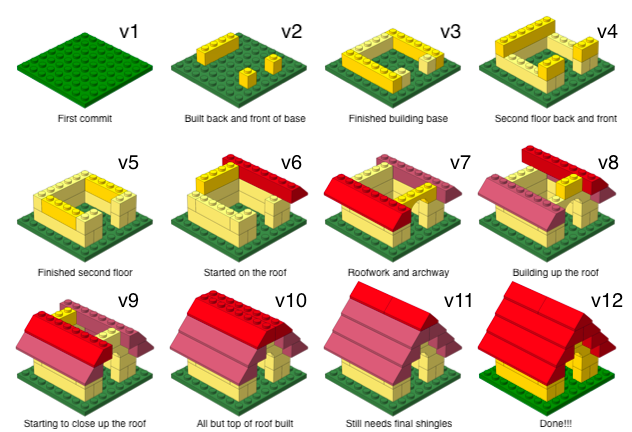
We will use private repositories to distribute code and assignments. You will also use repositories to keep track of your work and collaborate in teams.
Here is how you set everything up.
How to Install R
- Open your browser and go to https://cran.rstudio.com.
- Download the latest binary distribution for your operating system:
- Windows users: Click on Download R for Windows, then base, and download the latest version of R.
- Mac users: Click on Download R for macOS. Choose the current installer for your processor. If you do not know which processor your Mac uses, click the menu and select About This Mac. Choose the Apple silicon installer for an M-series chip and the Intel installer for an Intel processor.
- Run the downloaded
.exeor.pkgfile and follow the installation instructions. - When the installation has finished, continue with Positron or RStudio below.
How to Install Positron or RStudio
Installation using the recommendation
- Go to the Positron download page and click Download Positron.
- The page will recommend an installer for your operating system. If the recommendation matches your computer, download it.
- Open the downloaded file and install Positron.
Choose your operating system manually
Use these steps only if the recommended download does not match your computer.
- On the Positron download page, scroll to All platforms.
- Choose the appropriate version:
- Windows users: Choose the Windows x64 user installer unless you specifically need a system-wide installation and have administrator privileges.
- Mac users: Choose Apple Silicon for an M-series processor or Intel for an Intel processor.
- Open the downloaded file and install Positron.
RStudio is not required if Positron works on your computer, but you may install and use it as an alternative.
- Go to the RStudio Desktop download page.
- Scroll to the free RStudio Desktop version and download the recommended installer for your operating system.
- Open the downloaded
.exeor.dmgfile and install RStudio.
How to Get a GitHub Account
If you already have an account, please let us know your username as soon as possible. You do not need to create another account.
Otherwise, please follow these steps:
- Go to GitHub and create an account.
- Please let us know your username in order to invite you to the QM2026 organization.
- We recommend that you use your private email to use your account after your studies in Mannheim. In case you want to use GitHub Education you can add your university email later on for your verification as a student. Note that neither GitHub Pro nor Copilot is required for this course.
How to Install GitHub Desktop
GitHub Desktop provides the graphical interface we will use for version control. Installing Git separately and using Git commands in a terminal are not required for the normal course workflow.
- Go to https://desktop.github.com.
- Download GitHub Desktop for your operating system.
- Open the downloaded installer and follow the installation instructions.
- Open GitHub Desktop.
- Select Sign in to GitHub.com and complete the sign-in process in your browser.
To get started with GitHub Desktop visit the documentation.
Your Normal Course Workflow
Each time you work on an assignment, you will move between GitHub Desktop and Positron:
- Open GitHub Desktop and select the assignment repository. Check out the GitHub Desktop documentation to see how this works.
- Click Fetch origin. If updates are available, click Pull origin.
- Open the repository’s local folder in Positron.
- Edit and run your
Rcode in Positron. - Save your files.
- Return to GitHub Desktop and review the changes listed in the Changes tab.
- Enter a short commit message describing what you accomplished.
- Click Commit to main.
- Click Push origin.
- Open the repository on GitHub and confirm that your latest commit appears there.
Optional: Use Git from the Command Line
GitHub Desktop is sufficient for the required course workflow. If you already use Git in the terminal, you may continue doing so. Command-line Git is an optional, advanced workflow and will not be assumed during the lab sessions.
Optional: Use an AI Coding Assistant
AI assistance is optional and is not required to complete the course.
Positron supports several AI providers. To configure one, open the Command Palette and run Authentication: Configure Language Model Providers, then select a provider for which you have access. No provider is active until you authenticate it.
To open the assistant after configuring a provider, run View: Show Posit Assistant from the Command Palette.
If your GitHub Education application has been accepted and you have activated GitHub Copilot for your account, follow the RStudio User Guide for GitHub Copilot.